Need to force restart iPhone Air? This tutorial explains how to do a hard reset on iPhone Air when the device is frozen, stuck on the Apple logo, showing a black screen, or not reacting to touch or button presses. If your iPhone Air is experiencing software glitches, app crashes, or startup problems, a force restart is often the fastest solution. Follow the guide below to reboot your iPhone Air safely and restore normal operation.
Soft Reset for Apple iPhone Air
STEP 1
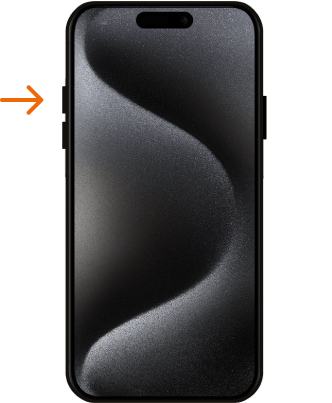
The first step is to press the volume up button with a quick, decisive movement, and then release it immediately.
STEP 2
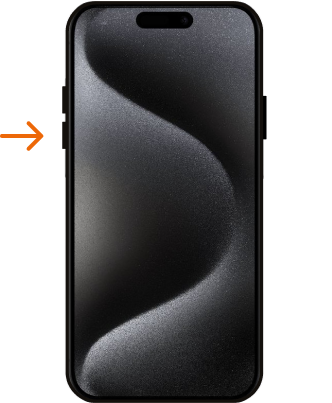
The next step is to press the Volume Down key, and then quickly release the key.
STEP 3
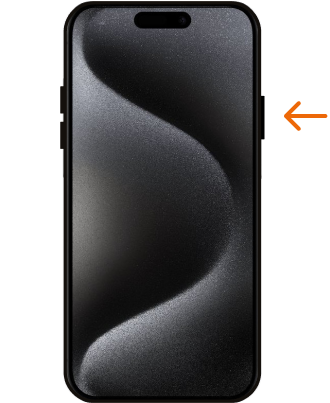
To initiate the iPhone hard reset process, press and hold down the side button for a while. Once you spot the logo, thenrelease the side button promptly.
STEP 4
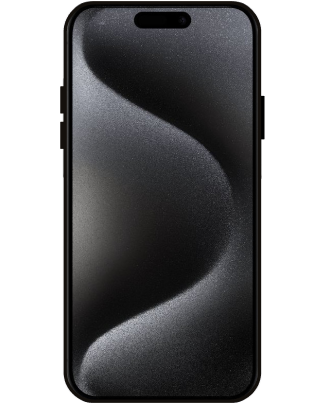
And that’s it, you have correctly performed Factory Reset operation and your iPhone should start the Force Restart task. Well done!
Force Restart video tutorial.
That is how to force restart iPhone Air and solve common issues such as freezing, lagging, an unresponsive screen, or a failed system boot. A hard reset is a simple troubleshooting method that does not erase your personal data, making it one of the safest ways to fix temporary iPhone Air software problems. Explore more iPhone Air tutorials, tips, and troubleshooting guides for additional support.